Installation
Device mounting, wiring, gateway setup, and field commissioning guidance.

From product installation and commissioning to troubleshooting and firmware updates, our technical experts are ready to assist.
Complete the form, and our team will contact you with the appropriate solution at the earliest.
Support Categories
Device mounting, wiring, gateway setup, and field commissioning guidance.
Configuration help for LoRaWAN devices, sensors, protocol converters, and gateways.
Assistance with dashboards, alerts, reports, APIs, and platform integrations.
Check warranty process, repair requests, replacement handling, and service terms.
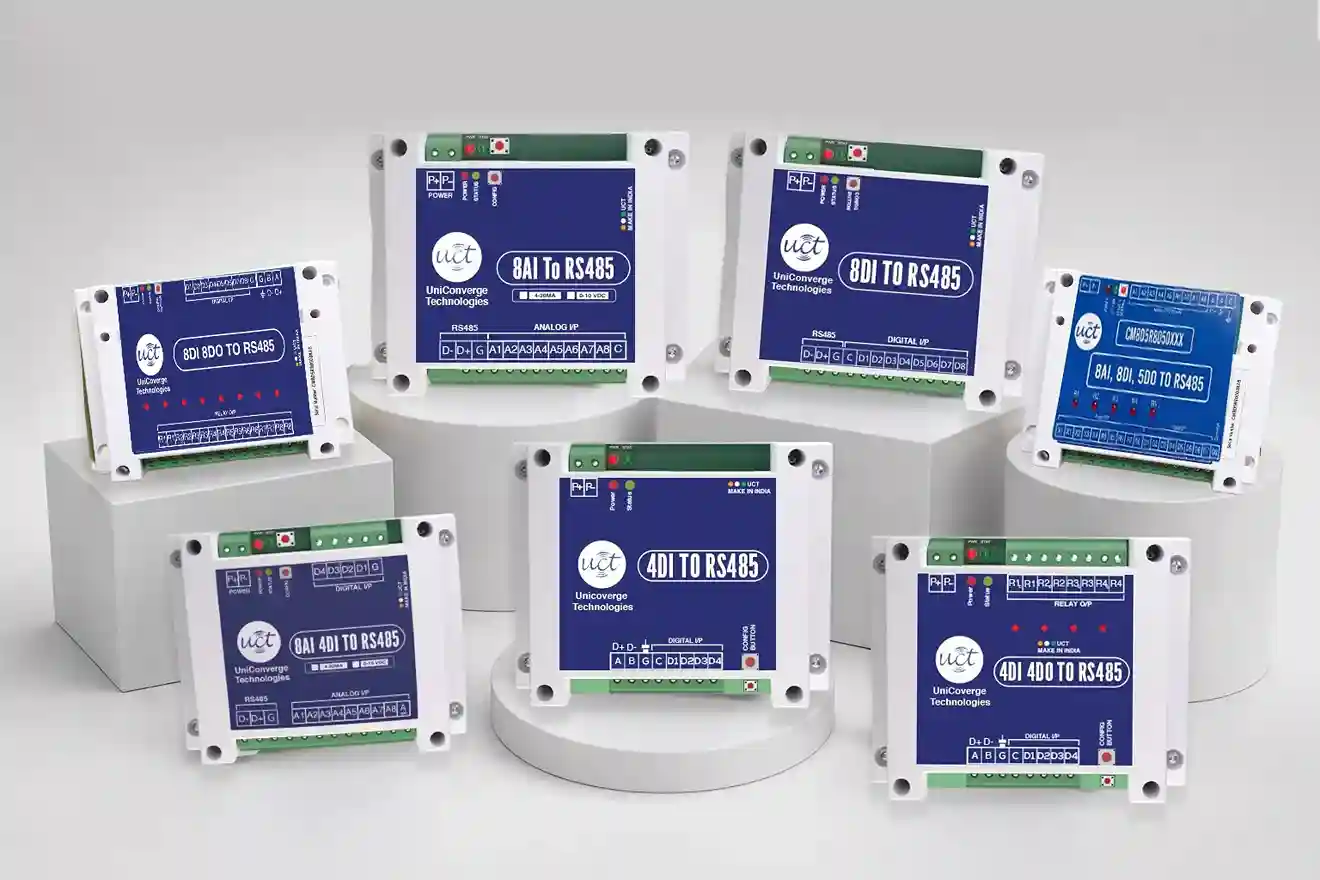
| Issue | Cause & Solution |
|---|---|
| Device Not Powering On | Check that a 9-24 VDC power supply is connected correctly and verify the wiring polarity. |
| No RS485 Communication | Verify the A(+) and B(-) wiring, baud rate, parity, and stop bits match the master device. |
| Communication Timeout | Ensure the PLC/SCADA is polling the correct Slave ID and register addresses, and check the RS485 cable connections. |
| Intermittent Communication | Use shielded twisted-pair RS485 cable, install 120 Ω termination resistors at both ends, and avoid routing cables near power lines. |
| Incorrect Analog Input Values | Verify the sensor wiring, input type (e.g., 4–20 mA), and ensure all terminal connections are secure. |
| Digital Inputs Not Responding | Check the input voltage, field wiring, and confirm the connected sensor or switch is functioning properly. |
| Digital Outputs Not Switching | Verify the output wiring, load rating, and ensure the Modbus write command is being sent successfully. |
| Duplicate Slave ID Error | Assign a unique Modbus Slave ID to every device connected to the RS485 network. |
| Communication LED Not Blinking | Confirm that the Modbus master is transmitting requests and the communication parameters are configured correctly. |
| Frequent Device Reset | Check for a stable power supply, proper grounding, and protect the device from voltage fluctuations and electrical noise. |
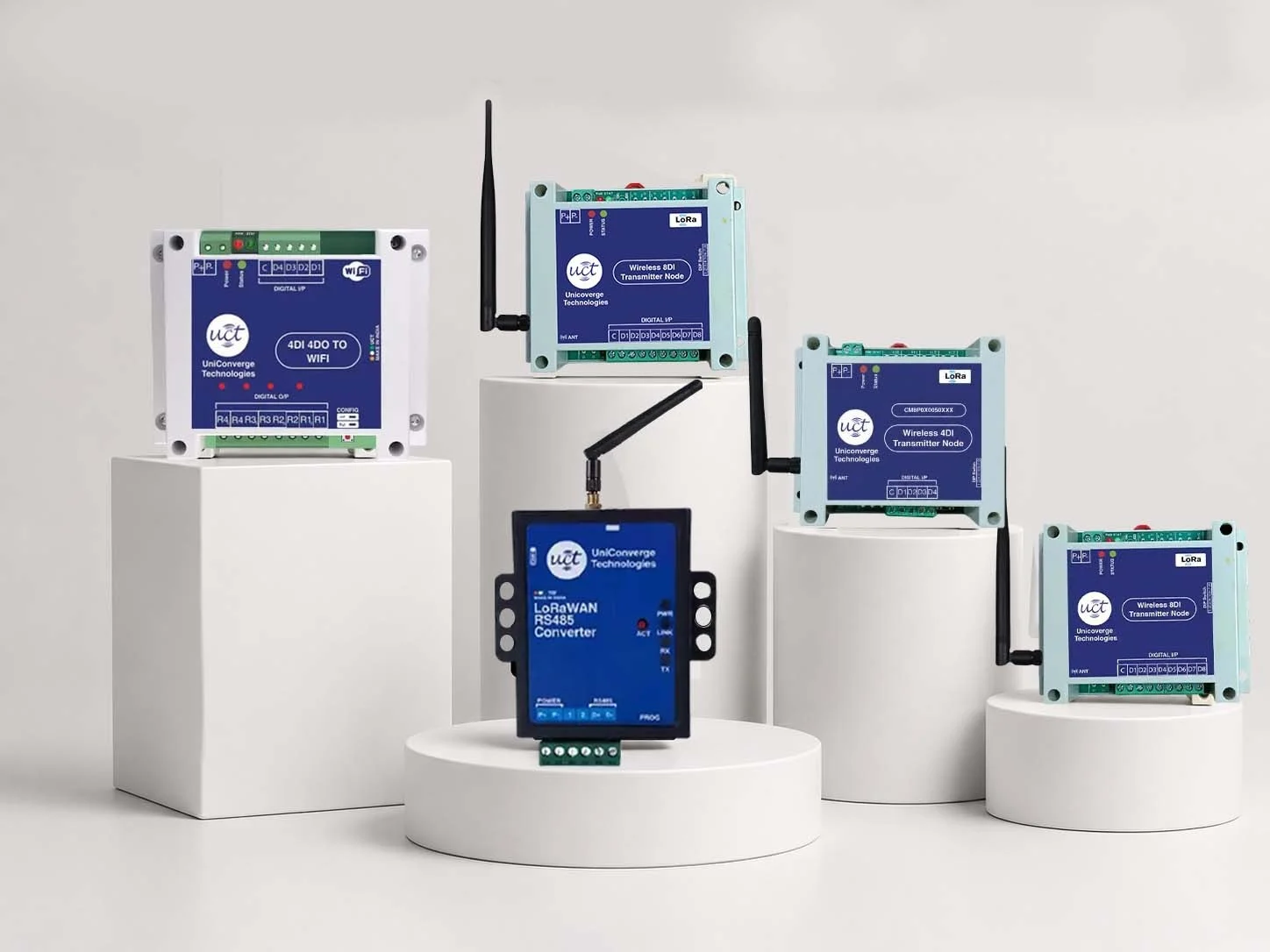
| Issue | Cause & Solution |
|---|---|
| Device Not Powering On | Check that the 9-24 VDC power supply is connected correctly and all terminal connections are secure. |
| No Wireless Communication | Ensure both devices are paired correctly, antennas are connected, and they are within communication range. |
| Weak or Unstable Signal | Reposition the antenna in an open area and remove obstacles or sources of interference. |
| Input Not Triggering Output | Verify I/O wiring, channel mapping, and ensure the connected field device is operating properly. |
| RS485 Communication Failure | Check A/B wiring and confirm the baud rate, parity, slave ID, and Modbus RTU settings match on both devices. |
| Intermittent Communication | Ensure a stable power supply, tighten wiring connections, and inspect antenna connections. |
| Device Not Responding | Restart the device, verify the power supply, and reconnect the wireless link if required. |
| Low Communication Range | Install antennas properly, maintain a clear line of sight, and avoid metal enclosures or large obstructions. |
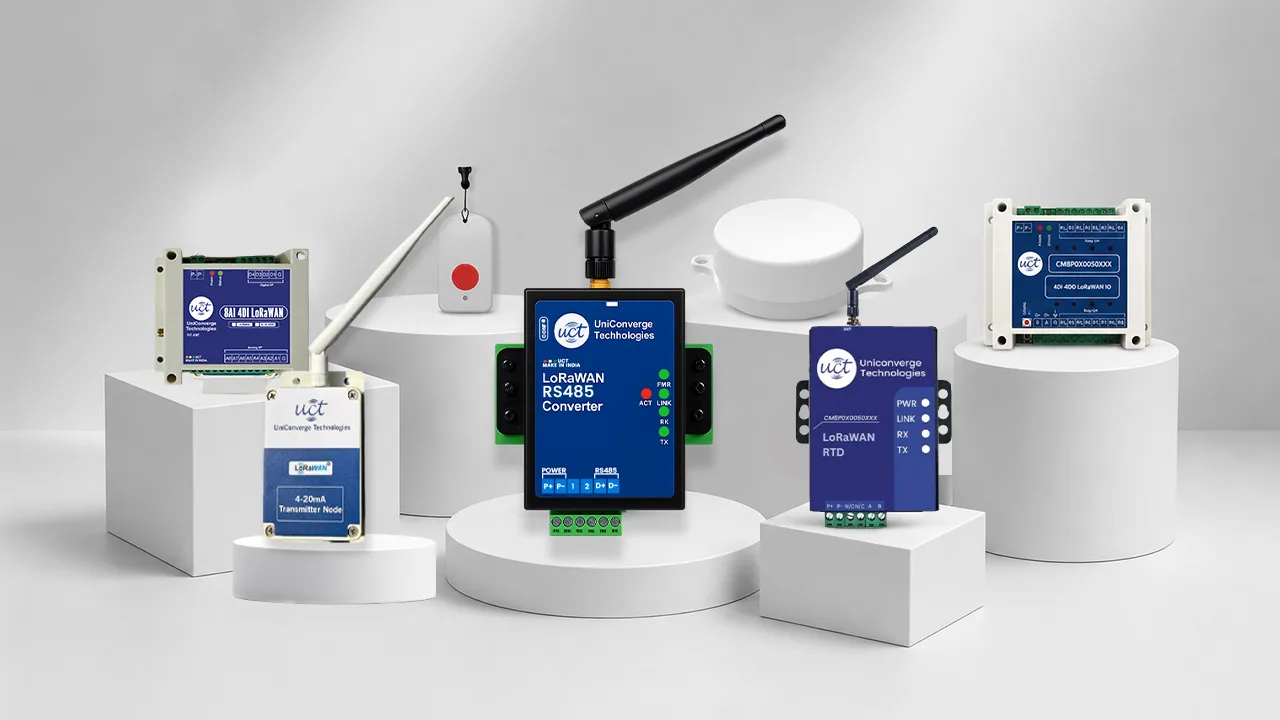
| Issue | Cause & Solution |
|---|---|
| Device Not Powering On | Verify the power supply or battery connection and ensure the input voltage is within the specified range. |
| Node Not Connecting to LoRaWAN Network | Check that the device is correctly configured with the required LoRaWAN parameters (DevEUI, AppEUI, AppKey) and that gateway coverage is available. |
| No Data Received on the Server | Ensure the node has successfully joined the network, the gateway is online, and the network server is receiving uplink packets. |
| Poor Signal Strength | Install the antenna correctly, position the device in an open area, and minimize obstructions between the node and gateway. |
| Incorrect Sensor Readings | Verify sensor wiring, input connections, and confirm the connected sensor is operating within the supported input range. |
| Battery Draining Quickly | Reduce the transmission interval, verify battery health, and avoid unnecessary frequent uplink messages. |
| Intermittent Communication | Check for power fluctuations, RF interference, or excessive distance from the LoRaWAN gateway. |
| Device Not Responding | Restart the device, verify wiring and power supply, and reconnect it to the LoRaWAN network if required. |
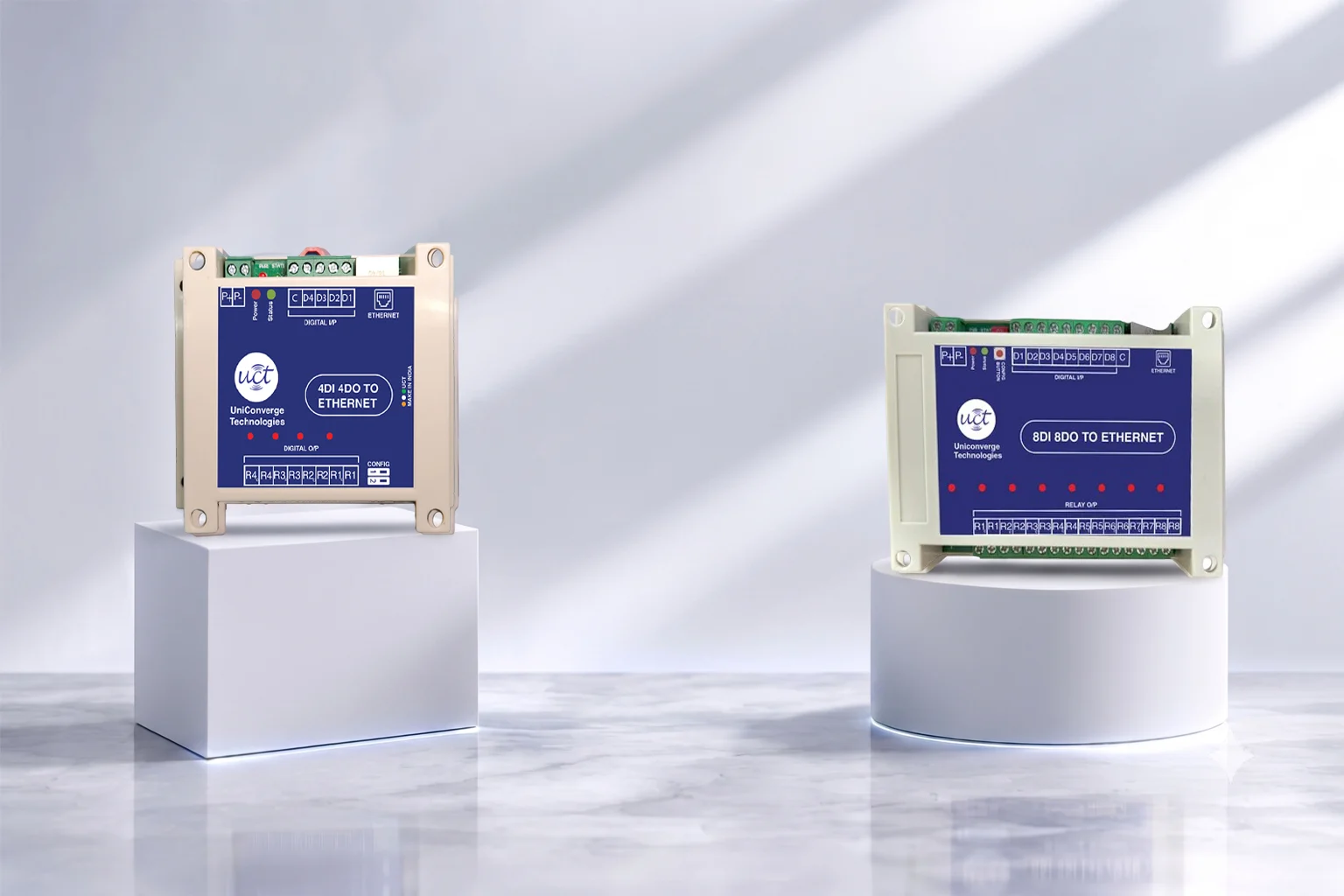
| Issue | Cause & Solution |
|---|---|
| Device Not Powering On | Verify the 9–30 VDC power supply, wiring connections, and ensure the Power LED is ON. |
| Unable to Connect to the Network | Check the Ethernet cable, RJ45 connection, and ensure the device is connected to the correct network. |
| Device Not Accessible via IP Address | Verify the IP configuration, subnet mask, and ensure the PC and device are on the same network segment. |
| Modbus TCP Communication Failure | Confirm the Modbus TCP settings, IP address, port number, and PLC/SCADA configuration are correct. |
| Digital Inputs Not Detected | Check field wiring, input voltage, and ensure the connected sensors or switches are functioning correctly. |
| Digital Outputs Not Switching | Verify relay wiring, output load ratings, and ensure the output command is being sent from the controller. |
| Intermittent Communication | Inspect Ethernet cable quality, network stability, and power supply for loose connections or interruptions. |
| Device Not Responding | Restart the device, verify network settings, and confirm communication status before reconnecting to the controller. |
Warranty & RMA
Our team reviews warranty eligibility, issue evidence, and device condition before assigning an RMA reference.
Send device details, invoice information, and issue summary.
Support validates logs, configuration, and warranty status.
Receive repair, replacement, or service instructions.
FAQs
Search Support
Contact Support
Speak with our technical support desk.
Share your site details for installation or field support.